11Trade JournalPro
The Trade Journal is where you log every wheel trade you make — cash-secured puts, covered calls, and share positions. It tracks your profit and loss automatically and gives you a clear picture of how your account is performing.
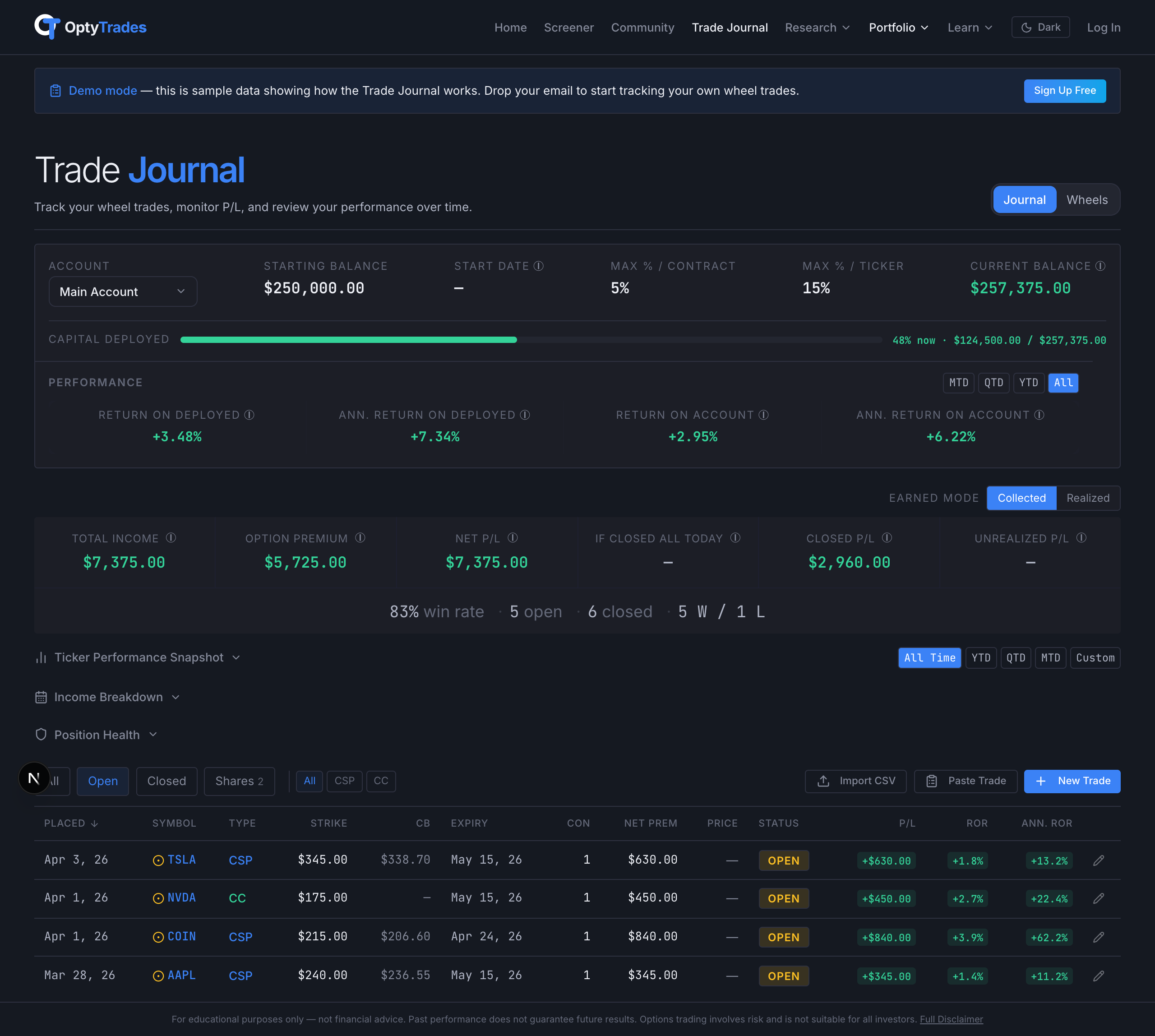
Setting up your account
Before you start logging trades, set up your trading account. Click Set Balance and enter your starting balance (for example, $100,000). This is the amount of cash in your brokerage account.
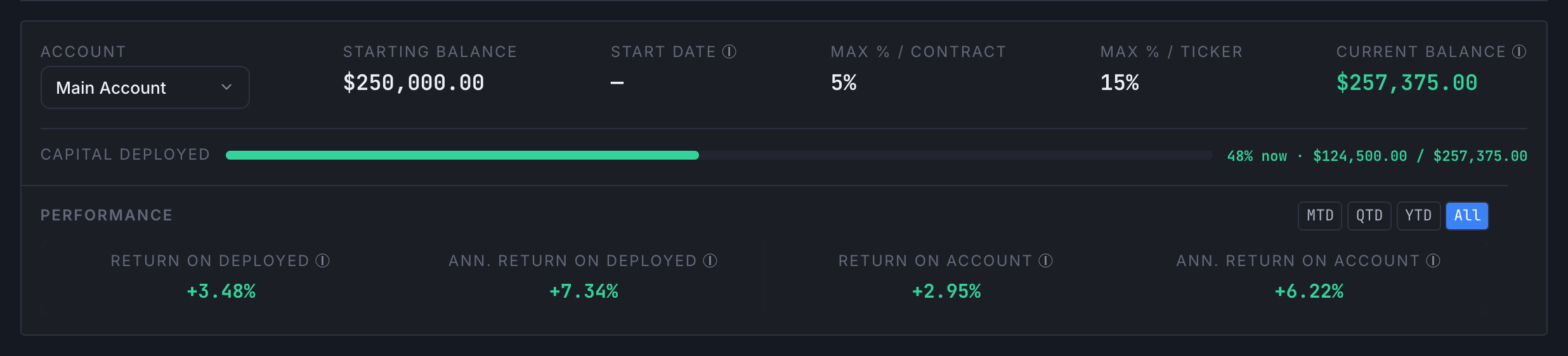
The account bar shows you these at a glance:
- Starting Balance — the amount you entered. Click Edit to change it anytime.
- Start Date — when this account began. It sets the clock for the annualized return figures below, so an account with no start date shows a dash rather than a number built on a guessed time span.
- Max % / Contract & Max % / Ticker — position sizing limits. These control the traffic light system (see Section 11).
- Current Balance — your starting balance plus your total P/L. Green means you're up, red means you're down.
- Capital Deployed — a progress bar showing how much of your account is committed to open positions. Green = under 50%, yellow = 50–75%, red = over 75%. The figure beside it is what's committed right now — the return tiles below divide by your average deployment across the whole period instead, so the two percentages are not meant to match. Hover the bar for both.
Below the bar you'll see performance metrics with period buttons (MTD, QTD, YTD, All) so you can see returns over different time frames.
Return on Deployed divides your P/L by average deployed capital, not by what happens to be committed today. That matters: if you ran $200k of positions for most of the period and closed down to $20k last week, dividing by $20k would invent a spectacular return you never earned. Return on Account measures against the account balance instead, so it answers a different question — how the account did, rather than how the capital you actually put to work did.
Adding your first trade
Click + New Trade and choose your trade type. The form adapts based on what you're entering:

- Cash-Secured Put (CSP) — Enter the symbol, strike price, premium received (per share), number of contracts, fees, and expiration date.
- Covered Call (CC) — Same fields as a CSP, plus a Cover with shares dropdown to link to an existing stock position. When you link a CC, the shares automatically change to “Covered” status.
- Shares — Enter the symbol, buy price and number of shares. Leave the status on Open (holding) while you still own them; P/L then tracks unrealized against the live price. When you sell, set the status to Sold and fill in the sell price — that books the realized gain or loss and releases the capital.
The Return Preview
As you type, the right-hand column of the form computes the trade live — the same math the Options Calculator runs: return on risk, annualized return, net premium after fees, capital at risk, premium per day, and the breakeven and assignment/call-away prices, with the same green / amber verdict band. A covered call linked to a lot you hold gets an If Called toggle showing the full outcome if the shares go.
It also works the other way: analyze a trade in the Calculator and hand it straight to the journal — the Add Trade form opens pre-filled, so nothing is retyped between deciding and recording.
The Paste Trade shortcut
Don't want to type every field? Click Paste Trade to import directly from your broker. Copy your trade confirmation from thinkorswim or Schwab, paste it into the text box, and the Trade Journal parses everything automatically.
- One line — pre-fills the form so you can review and save.
- Multiple lines — batch-imports all trades at once.
- “TO CLOSE” lines — automatically finds your open trade by symbol, type, and strike, and records a Buy-to-Close.
Understanding the summary cards

Six cards carry the dollar figures, with a thin line of counts underneath them — how many trades, and how many of them worked.
The first four cards are one running number, not four unrelated figures. Each one takes the card before it and adds or subtracts a single thing, so you can see exactly where your result comes from:
- Total Income — option premium plus realized stock P/L. This is the headline number: the income the account actually produced. On a wheel, shares assigned and later called away above your basis are a real part of the return, so premium on its own understates what you made. How much came from stock is the gap between this card and the next one.
- Option Premium — the same figure with the stock part removed. Every credit you collected on puts and calls, minus what you paid to buy contracts back on rolls and early closes, minus fees. The gap between this card and Total Income is your stock contribution.
- Net P/L — Total Income plus the current unrealized gain or loss on shares you still hold. This is the mark-to-market view: what the whole position is worth today, including the stock that hasn't been sold yet.
- If Closed All Today — what you'd be left with if you unwound the entire book right now: Net P/L minus roughly what it would cost to buy back every open contract at its last closing price. The three cards above it count an open contract's premium at full credit; this one is the only card that subtracts what those contracts are currently worth, which is why it reads lowest and sits closest to a brokerage statement.
The last two cards stand on their own — they aren't part of that chain:
- Closed P/L — realized P/L from resolved trades only (expired, bought back, assigned, called away) plus share lots you've already sold. Nothing here can reverse. It is a different basis from the four cards before it, which is why it sits after the chain rather than in the middle of it.
- Unrealized P/L — paper profit or loss on stock positions you still own, based on the latest closing price. When you sell, this amount moves into Closed P/L.
The line underneath reads 83% win rate · 5 open · 6 closed · 5 W / 1 L:
- Win rate — percentage of closed trades that made money. A share lot is not a trade — the wheel's shares are the position its contracts hand back and forth, so their dollars stay in every P/L figure but they are not counted as a win or a loss of their own.
- Open / closed — how many positions are active vs. finished.
- W / L — count of profitable vs. unprofitable closed trades.
Earned mode: Collected vs. Realized
A Collected | Realized toggle sits above the summary cards. It changes how premium income is counted in the Performance percentages and the Income Breakdown table, which flip together so those two can never disagree.
The summary cards themselves do not move with this toggle — each one has a fixed meaning, and the collected-vs-realized comparison is already built into the row. Total Income, Option Premium and Net P/L are the collected-basis figures (their tooltips say so); Closed P/L is the realized-only one sitting a few cards over. That way the two bases are visible side by side instead of one replacing the other.
- Collected (default) — cash basis. Every STO credit is counted on the day you sold-to-open, and every BTC debit is counted on the day you bought-to-close. This matches how cash actually moved through your brokerage. It includes premium sitting on still-open contracts that could still go against you.
- Realized — conservative. Only counts premium once a contract has fully resolved (expired, BTC'd, assigned, or called away). The number you see is money you get to keep no matter what happens next.
When in Realized mode, the Performance section shows a small amber realized basis chip so you know you're looking at the conservative view. Annualized return cards gracefully show “—” when there are fewer than 5 closed trades, since annualizing a tiny realized sample produces wildly misleading numbers.
Income Breakdown
Below the summary cards, click Income Breakdown to expand a monthly premium tracker. It shows your premium cash flow, contract count, and win rate broken down by month, with quarterly and annual subtotals.
The Earned mode toggle controls what each month's number means:
- Collected — the actual cash that hit your account that month. STO credits show on the open date, BTC debits show on the close date, so a single contract can contribute to two different months.
- Realized — net P/L per contract, booked entirely on the contract's close date.
When you're in Collected mode and have open contracts, an amber line shows above the table: “⚠ $X,XXX.XX of unresolved premium in N open positions” — that's how much of the collected total could still flip to losses if the market moves against you.
Click any month row to expand it. Each individual cash-flow event becomes its own row:
- Ticker — on a closing-leg row (BTC/Resolved) the ticker is clickable; clicking it scrolls to and pulses the originating STO row so you can see where the contract started.
- Opened — the date the contract was sold-to-open. Useful for spotting that all of January's STOs share the same March expiry.
- Expires — the contract's original expiration date. For resolved contracts this is the date it was originally sold for, not when it actually closed.
- Event badge — STO (green: credit collected), BTC (amber: debit paid to close), or Resolved (gray: expired worthless / assigned / called away, $0 cash flow). On closing-leg rows a small relative-time pill (e.g.
←5w) shows how long ago the contract was opened. - Cash flow — how much this single event added to or removed from your account this month, not the contract's lifetime P/L. All event rows in an expanded month sum to the month total.
- Status — the contract's current lifecycle state. On an STO row this status may refer to a close that happened in a later month.
Position Health
Below Income Breakdown, click Position Health to expand a live cushion table for all your open CSP and CC positions. It uses real-time prices to show how much buffer you have before each contract goes in-the-money.
- CSP cushion — how far the stock price is above your strike. A positive % means you're still out-of-the-money; negative means you're ITM and the put is in danger of assignment.
- CC cushion — how far your strike is above the current price. Positive means the call is OTM; negative means the stock is above your strike and the shares could be called away.
Each row shows a coloured status badge:
- ITM — the contract is already in-the-money. For CSPs this means the stock has fallen below your strike; for CCs the stock is above your strike.
- Warn — buffer is thin but still OTM. CSPs show Warn below 3% cushion; CCs below 5%.
- OK — comfortable margin, no immediate risk.
Rows are sorted by risk: ITM positions first, then Warn, then OK. Within each tier the position with the smallest cushion appears at the top.
When at least one position is ITM or in the Warn zone, the collapsed header shows an amber badge with a count (e.g. “2 need attention”) so you can spot trouble at a glance without expanding the section.
Position Health only appears when you have at least one open CSP or CC in the currently selected account. It reads from the same live price feed used by the rest of the journal page, so no extra data fetch is needed.
Filtering your trades

Use the filter buttons to see specific subsets of your trades:
- Open — all active positions (includes covered shares)
- Closed — expired, bought-to-close, assigned, or called-away trades
- Shares — just your stock positions
Within each main filter, you can narrow further — for example, under Closed you can filter by just CSPs or just CCs.
When any open contract has an earnings report scheduled before it expires, one more control appears alongside those: 3 through earnings — the count of affected contracts, and a click filters the table down to just those. It stays hidden when nothing in the book is exposed, so a quiet week shows nothing to chase.
The trade table

Each row in the table shows:
- Symbol — click to go to that stock's detail page. Open trades also show a colored dot for position sizing (green/yellow/red).
- Type — CSP, CC, or SHARES.
- Strike / Buy Price — the strike for options, or the price you paid for shares.
- Net Prem — for options, the premium collected minus any close cost and fees. Hover to see the full breakdown.
- CB — cost basis per share: the strike minus the premium you collected, i.e. what the shares would effectively cost you if you were assigned. Hover for the full workings, including the assignment price and each leg of premium that went into it.
- P/L — profit or loss. Green badge for profit, red for loss.
- ROR / Ann. ROR — your rate of return and annualized return on this trade.
- Status — where the trade is in its lifecycle (see below).
- Expiry — when the contract expires. If an earnings report falls inside that window, the date is highlighted — see Earnings inside your contract window below.
- Actions — edits the trade directly. Everything else lives behind — see The row actions menu below.
The row actions menu
Every row ends with two controls: a pencil that opens the edit form, and a menu holding the rest. Editing is the one you reach for most, so it stays one click away; the others are one click further and clearly labelled rather than being a row of icons you have to hover to identify.
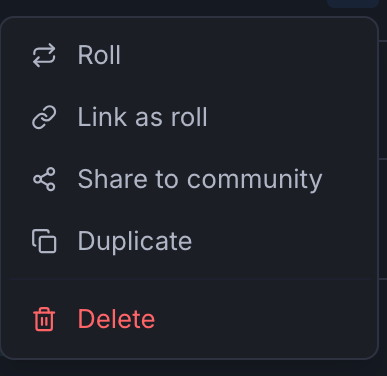
- Roll — buy back this contract and sell a new one in a single step, so the close and the re-open are recorded together. Open options only.
- Link as roll — tells the journal that this trade came from an earlier one you already logged, so the pair reads as one continuing position rather than two unrelated trades. Open options only.
- Share to community — posts the trade to the Trade Feed. Once shared, the item shows a green check and is disabled, so the same trade can't be posted twice.
- Duplicate — opens the Add Trade form pre-filled with the same details, useful for re-entering a similar position quickly.
- Delete — removes the trade. It sits below a divider and asks for confirmation first.
Closed trades show a shorter menu — Roll and Link as roll only apply while a contract is still open.
Earnings inside your contract window
An earnings report is the single most likely thing to move a stock sharply while you're short an option against it. The journal marks the Expiry date when a report is scheduled before your contract expires, so you can see it without leaving the page.
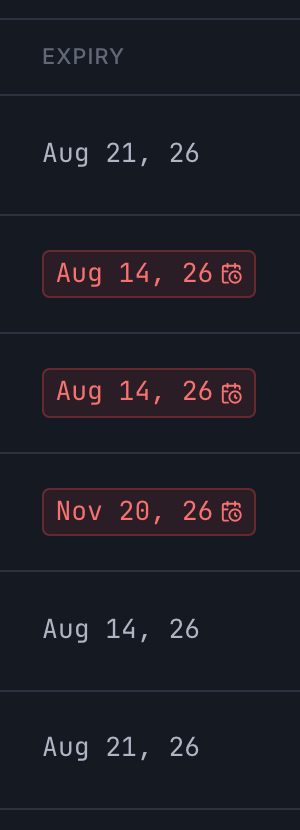
- Red — earnings falls inside the contract window. The position is open across the print.
- Amber — earnings lands within a week after expiry. Outside the current window, but a roll past expiry would take the position into it.
- Plain — no report scheduled anywhere near this contract.
Hover the date for the specifics — the report date, whether it lands before the open or after the close, and how many days separate it from your expiry. That timing matters: a report on the morning of expiry day gaps the stock with no session left to react, while the same report after that day's close arrives once the contract has already resolved.
Trade statuses explained
| Status | What it means |
|---|---|
| Open | The position is active — you're in the trade. |
| Covered | Shares only — you've sold a covered call against this position. Set automatically when you link a CC. |
| Expired | The option expired worthless — you keep the full premium. This is a win. |
| BTC | Buy-to-Close — you bought back the option before it expired. Your P/L is the premium collected minus the close cost. |
| Assigned | CSP only — you were assigned 100 shares per contract. A stock position is created automatically. Now sell covered calls against your shares. |
| Called Away | CC only — your shares were sold at the strike price. The linked stock position closes automatically. Now sell a new CSP to restart the wheel. |
Viewing closed trades
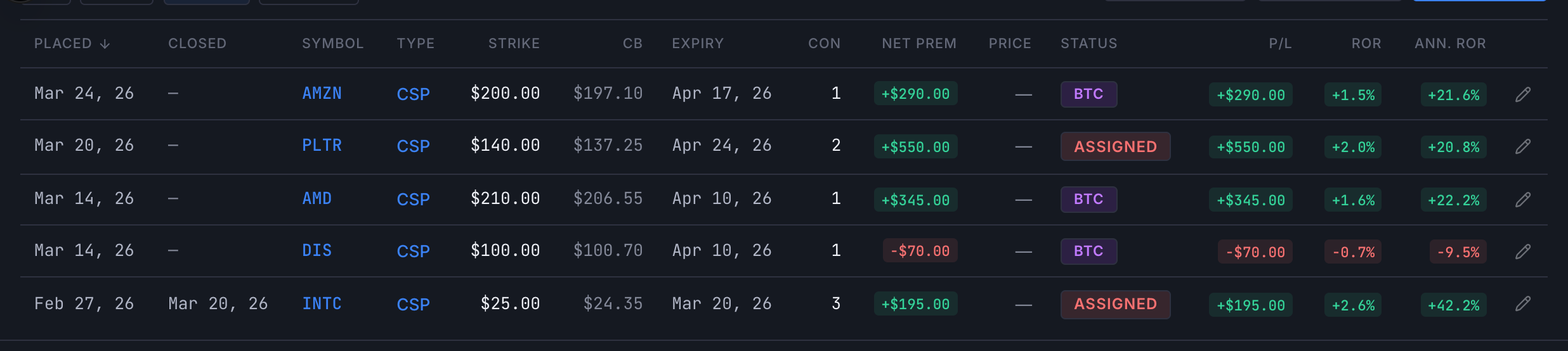
Click the Closed filter to see all your completed trades. Each one shows the final P/L and how it was closed (expired, BTC, assigned, or called away).
The full wheel cycle
The wheel strategy follows a repeatable cycle, and the Trade Journal tracks every step:
- Sell a CSP — log it as a new CSP trade. Status: Open.
- It expires worthless — set status to Expired. You keep the premium. Start over with step 1.
- Or you get assigned — change the CSP status to Assigned. A SHARES position is created automatically at your strike price.
- Sell a covered call — add a new CC trade and link it to your shares. The shares status changes to Covered.
- CC expires worthless — the shares revert to Open. Sell another CC (repeat step 4).
- Shares called away — set the CC status to Called Away. The linked shares are closed. Back to step 1.
How P/L is calculated
- Options (CSP/CC) — P/L = (premium × 100 × contracts) − (close cost × 100 × contracts) − open fees − close fees.
- Shares — Realized P/L = (sell price − buy price) × shares − fees. While open, unrealized P/L is calculated from the latest closing price.
Connection to Income Planner
Everything you log in the Trade Journal flows into the Income Planner. When you enable Trade Journal Mode in the Income Planner, it pulls your real trades to calculate actual yield, account balance, and sustainability. If you withdraw money, your account balance adjusts — and the Income Planner recalculates whether your income plan is still on track.
See the Income Planner guide for the full details.
12Position Sizing & Risk ManagementPro
Good position sizing is what keeps one bad stock from ruining your whole account. The Trade Journal includes a built-in traffic light system that warns you when a single position — or your entire portfolio — is getting too concentrated.
How the traffic lights work
Once you set your account balance, every open trade gets a colored dot next to its symbol. The color reflects how much of your account that one stock uses across all your positions on it:
| Color | Threshold | What it means |
|---|---|---|
| Green | ≤ Max % / Contract | Healthy — one bad trade won't hurt your account significantly. |
| Yellow | Between contract and ticker max | Caution — getting concentrated on this stock. |
| Red | > Max % / Ticker | Overweight — a big drop in this stock could seriously damage your account. |
Capital deployed bar
The progress bar in the account bar shows how much of your total account is tied up in open positions:
- Green (≤ 50%) — plenty of cash for new opportunities or unexpected assignments.
- Yellow (50–75%) — getting tight. Be selective about opening new positions.
- Red (> 75%) — fully deployed. No room for dips or new setups.
Scale-in tracking
When you have multiple open CSPs on the same stock, colored dots appear next to the symbol showing your scale-in level. This helps you see how many layers deep you are:
- Level 1 — your initial entry
- Level 2 — stock dropped ~20%, you sold another CSP lower
- Level 3 — ~40% drop, another CSP (high-conviction only)
- Level 4 — maximum position. Beyond this, the stock may have fundamental problems.
Position sizing in the Calculator
The Options Calculator also uses your account size. When you analyze a potential trade, it shows:
- How much capital this trade would use and what % of your account
- Whether you already have positions on that ticker
- Your remaining buying power after the trade
- The scale-in level if you already have CSPs on that stock